Table of Contents
How to Install IPTV Smarters Pro on TV
Are you tired of missing out on your favourite TV shows and live sports events? Imagine having access to a vast library of content at your fingertips. You can stream it seamlessly on your TV.
IPTV Smarters Pro is a powerful media player. It delivers a high-quality viewing experience across multiple platforms. It supports various IPTV formats, including M3U and JSON playlists. This makes it an ideal choice for streaming your personal media content.
By installing IPTV Smarters Pro on your TV, you can enjoy your favourite channels and shows with ease. This guide will walk you through the process. It ensures a smooth setup.
What is IPTV Smarters Pro?
IPTV Smarters Pro changes how you watch TV on your smart TV. It’s not just a media player; it’s a doorway to endless entertainment. Its easy-to-use interface lets you find your favourite shows and channels quickly.
Overview of IPTV Technology
IPTV, or Internet Protocol Television, lets you stream TV over the internet. It’s different from old TV broadcasting. IPTV Smarters Pro uses this tech to offer a customised viewing experience. You get to choose from many channels and watch what you want, when you want.
Key Features of IPTV Smarters Pro
IPTV Smarters Pro has lots of cool features. It supports many IPTV formats like M3U, M3U8, and XSPF. This means you can use playlists from lots of IPTV services. It also has an Electronic Program Guide (EPG), lets you watch on multiple screens, and has catch-up TV.
The app’s user-friendly design makes it easy to find and enjoy your favourite shows. Whether you’re watching live TV, catching up on episodes, or exploring new content, IPTV Smarters Pro makes it all smooth and fun.
Device Compatibility
IPTV Smarters Pro works on many devices, making it easy to watch your favourite shows. It’s designed to work well on lots of platforms. So, you can enjoy your content on any device you like.
Supported Smart TVs and Devices
IPTV Smarters Pro is great for those who use different devices. It’s perfect for:
- Android phones and tablets
- Android TV and Android TV Boxes
- Nvidia Shields
- Windows 8/10 PCs
- macOS devices
- iPhone and iPad
- Apple TV
- LG Smart TVs
- Samsung Smart TVs
Whether you’re into Android, iOS, or Smart TVs, IPTV Smarters Pro has you covered.
Minimum System Requirements
For a smooth streaming experience, your device needs to meet some basic requirements. The exact needs depend on your device and operating system. But, here are some general guidelines:
- A recent operating system version (like Android 5.0 or iOS 12)
- A fast internet connection (at least 5 Mbps for HD content)
- A device that can handle the app and streaming well
By meeting these requirements, you’ll get the best out of IPTV Smarters Pro. You’ll enjoy uninterrupted streaming and all its features.
Preparing Your TV for Installation
To set up IPTV Smarters Pro on your TV, follow a few easy steps. Making sure your TV is ready is key for a smooth installation.
Checking Internet Connection
First, check if your TV has a stable internet connection.
- Make sure your TV is connected to your Wi-Fi network.
- If you’re using a wired connection, check that the Ethernet cable is well plugged into both your TV and router.
A stable internet connection is essential for smooth streaming.
Enabling Unknown Sources
You might need to allow apps from unknown sources on your TV.
- On Android TV, go to Settings > Security & restrictions > Unknown sources and turn it on.
- For other smart TVs, this option might be in different menus. If needed, check your TV’s manual.
Allowing unknown sources lets your TV install apps not found in the official app store.
How to Install IPTV Smarters Pro on TV Android
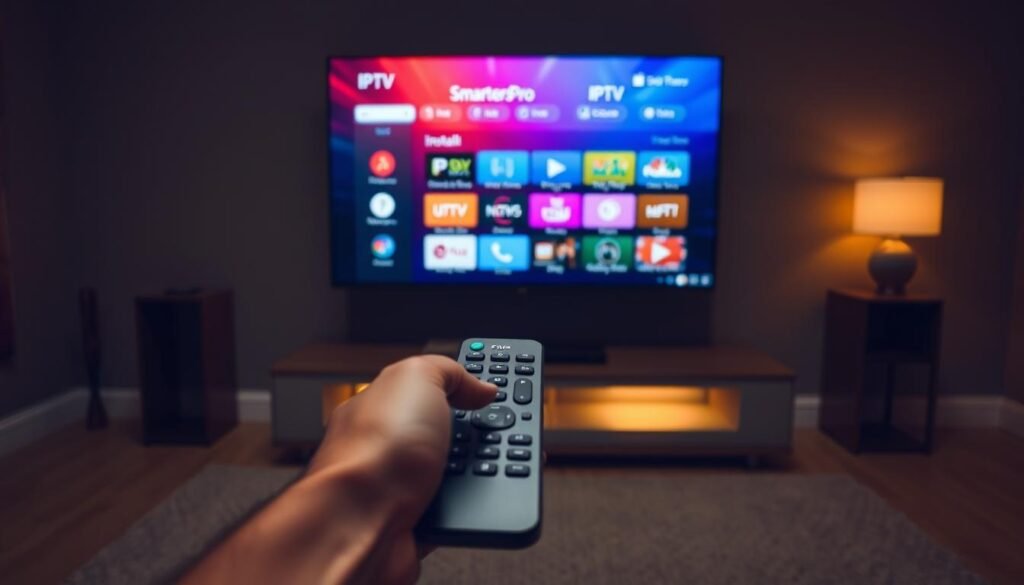
Installing IPTV Smarters Pro on Android TV is easy. It’s perfect for streaming your favourite shows or accessing many channels. It’s a great choice for Android TV users.
Downloading from Google Play Store
The easiest way to get IPTV Smarters Pro is through the Google Play Store. Here’s how to do it:
- Navigate to the Google Play Store on your Android TV.
- Search for “IPTV Smarters Pro” using the on-screen keyboard.
- Select the IPTV Smarters Pro app from the search results.
- Click the “Install” button to download and install the app.
After it’s installed, you can find IPTV Smarters Pro in your Android TV’s app drawer.
Alternative Installation via APK
If you can’t find IPTV Smarters Pro on the Google Play Store, you can use an APK. Here’s how:
- Enable installation from unknown sources in your Android TV settings.
- Download the IPTV Smarters Pro APK file from a trusted source using a file manager or a web browser on your Android TV.
- Open the downloaded APK file and follow the on-screen instructions to install it.
Sideloading apps can pose security risks if not done carefully. Make sure to download from a reliable site to avoid problems.
Once installed, IPTV Smarters Pro is ready for use on your Android TV. You can set it up with your IPTV subscription details to start streaming.
How to Install IPTV Smarters Pro on Fire TV
Fire TV users can easily install IPTV Smarters Pro. You can do this through the Amazon Appstore or by sideloading the APK. Both methods are simple and let you enjoy your IPTV content without hassle.
Using the Amazon Appstore
The Amazon Appstore makes it easy to install IPTV Smarters Pro on your Fire TV. Just follow these steps:
- Navigate to the Amazon Appstore on your Fire TV.
- Search for “IPTV Smarters Pro” using the on-screen keyboard.
- Select the IPTV Smarters Pro app from the search results.
- Click “Get” or “Download” to start the installation.
- Wait for the app to download and install on your Fire TV.
Sideloading the APK
If IPTV Smarters Pro isn’t on the Amazon Appstore, or if you like sideloading, here’s how:
- Enable “Apps from Unknown Sources” on your Fire TV by going to Settings > My Fire TV > Developer Options.
- Download the IPTV Smarters Pro APK from a trusted source using your Fire TV’s web browser.
- Once downloaded, open the APK file to start the installation.
- Follow the on-screen instructions to finish the installation.
By following these steps, you can successfully install IPTV Smarters Pro on your Fire TV. Then, you can start enjoying your favourite IPTV content.
How to Install IPTV Smarters Pro on Samsung Smart TV
Samsung Smart TV users can easily install IPTV Smarters Pro. Just follow a few simple steps. This guide will help you enjoy your IPTV content on your Samsung TV.
Accessing the Samsung App Store
To install IPTV Smarters Pro, first access the Samsung App Store on your TV. Go to the Smart Hub on your Samsung Smart TV. Then, select the “Apps” section. Use the on-screen keyboard to search for “IPTV Smarters Pro”.
Steps to Access the Samsung App Store:
- Press the Smart Hub button on your remote.
- Navigate to the “Apps” section.
- Use the search function to find “IPTV Smarters Pro”.
Manual Installation Steps
If IPTV Smarters Pro is not in the Samsung App Store, or if you prefer manual installation, you can sideload the app. First, check your TV’s settings to allow apps from unknown sources. Then, download the IPTV Smarters Pro APK file to a USB drive. Connect the USB drive to your Samsung TV, and follow the on-screen instructions to complete the installation.
Manual installation gives you more control over the installation process.
How to Install IPTV Smarters Pro on LG Smart TV
To enjoy IPTV Smarters Pro on your LG Smart TV, just follow these easy steps. It’s quick and simple, taking only a few minutes.
Finding the App in LG Content Store
The LG Content Store is where you find IPTV Smarters Pro. To get it, go to the LG Content Store on your TV. Then, search for “IPTV Smarters Pro.”
- Press the “Home” button on your LG TV remote to access the home menu.
- Navigate to the LG Content Store icon and click on it to open.
- In the search bar, type “IPTV Smarters Pro” and select the app from the search results.
- Click on the “Install” button to begin the download and installation process.
Installation Via WebOS
LG Smart TVs use WebOS, making app installation easy. After finding IPTV Smarters Pro in the LG Content Store, the installation happens automatically.
- Ensure your TV is connected to the internet to download the app.
- Wait for the installation to complete. You will see a confirmation message once IPTV Smarters Pro is successfully installed.
- Navigate to the “Apps” section on your LG TV, find IPTV Smarters Pro, and launch it.
Tips for a Smooth Installation: Make sure your LG Smart TV is connected to a stable internet connection. If you encounter any issues, try restarting your TV or checking for any software updates.
By following these steps, you should be able to download and install IPTV Smarters Pro on your LG Smart TV without any issues. Enjoy exploring the various features and content available through the app.
Setting Up IPTV Smarters Pro
After installing IPTV Smarters Pro, it’s time to set it up. You’ll need to enter your IPTV subscription details. This is a simple process that lets you start streaming your favourite shows quickly.
Initial Configuration Process
To begin, open the app on your TV. You’ll see a prompt to enter your IPTV subscription info. You’ll need your username, password, and the IPTV portal URL from your provider.
Make sure you have these ready to avoid any delays in the setup.
Adding Your IPTV Subscription
To add your IPTV subscription, just follow these steps:
- Enter your username and password in the fields.
- Put in the IPTV portal URL given by your IPTV service.
- Click “Add User” or a similar option to save your details.
After these steps, IPTV Smarters Pro will connect to your IPTV service. You can then explore the channels and content available.
Troubleshooting Installation Issues
If you’re having trouble installing IPTV Smarters Pro, you’re not alone. This section will help you overcome common installation issues.
Common Errors and Fixes
Several common issues may arise during the installation of IPTV Smarters Pro. These include incorrect login details or failure to enable unknown sources on your device.
- Incorrect Login Details: Make sure your username and password are correct. Double-check the credentials given by your IPTV service provider.
- Unknown Sources Not Enabled: Many devices need you to enable apps from unknown sources. Check your device settings to make sure this option is enabled.
Tips for Smooth Installation
To avoid installation issues, follow these best practices:
- Check Your Internet Connection: A stable internet connection is key for a smooth installation process.
- Update Your Device’s Operating System: Make sure your TV’s OS is up-to-date to avoid compatibility issues.
- Follow Installation Instructions Carefully: Pay close attention to the installation steps provided in the previous sections.
By understanding these common issues and following the tips outlined above, you should be able to successfully install IPTV Smarters Pro on your TV.
Additional Features to Explore
IPTV Smarters Pro has lots more to offer after you set it up. You can make your viewing experience better by customizing it.
Customizing the User Interface
You can change the IPTV Smarters Pro look to fit your taste. You can pick from different themes and adjust the layout. To do this, go to the settings menu.
Utilizing Parental Controls
If you have kids, IPTV Smarters Pro has parental controls. You can block certain content with PIN-protected profiles. This way, kids only see what’s right for them.This feature gives parents peace of mind.
To turn on parental controls, go to settings and follow the steps. This will help you set the right level of restriction.
Exploring these extra features can really improve your IPTV Smarters Pro experience. It makes watching TV more fun and personal.
Conclusion and Next Steps
Now you’ve installed IPTV Smarters Pro on your TV, you’re all set for endless entertainment. Make sure you have a stable internet connection. Also, keep the app updated for the best experience.
Optimising Your IPTV Experience
After following the iptv smarters pro installation guide, you’re ready to enjoy your favourite shows. To make your viewing better, follow best practices for iptv smarters pro. This includes checking for updates and using a reliable internet.
If you are still looking for a provider, check our Best IPTV Services.
Exploring Content Options
IPTV Smarters Pro offers a vast selection of channels and on-demand content. Spend some time discovering what’s available. You can also tailor your experience to fit your tastes.